

Your iPhone.
Your dashboard.
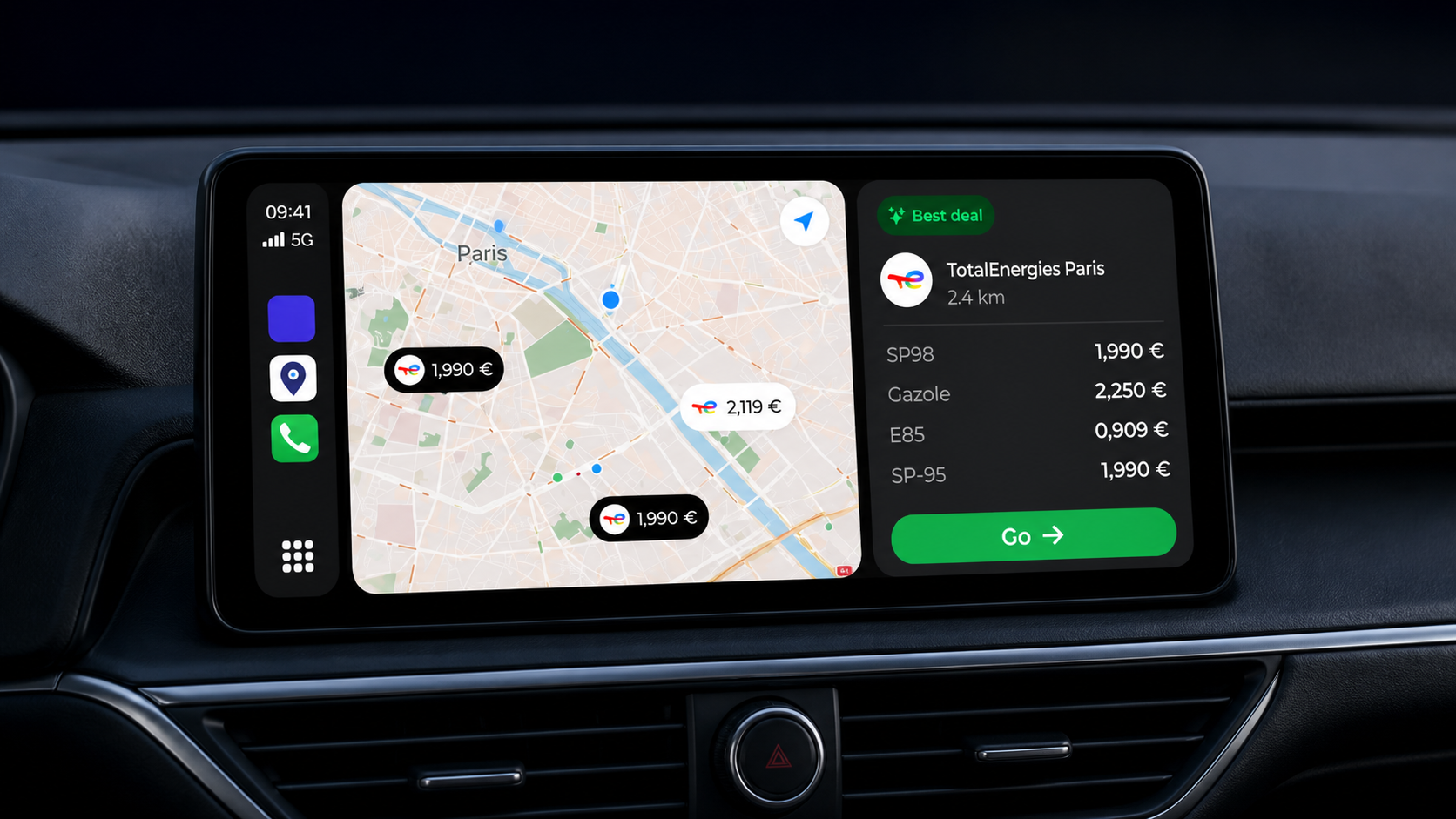
With Fillzz Premium, use Apple CarPlay to browse nearby stations, find your favourites and start a route to your fuel stop from a compatible car display.
Download FillzzIncluded in Fillzz Premium · compatible equipment required.

IN PRACTICE
Prepare your Premium access
Open an up-to-date version of Fillzz on your iPhone and sign in to the account with Fillzz Premium. Check access before connecting to the car: CarPlay is included in the subscription.
Connect your iPhone
Use a CarPlay-compatible vehicle or head unit with Siri enabled. Depending on the equipment, connect through USB or wirelessly. Follow your vehicle’s setup instructions.
Open Fillzz on the car display
Allow location access on your iPhone to find nearby stations. Once connected, open Fillzz in CarPlay and choose a station before setting off. You can then prepare guidance to that stop.
What station information appears in CarPlay?
Fillzz offers a station list and details showing available fuel prices. Depending on the supplied information, you can also see the address, brand, distance and travel time. These details help you assess a stop in the context of your journey.
Find a stop and start a route
The in-car interface provides access to nearby stations, favourites and recent destinations. From a station’s details, the directions action lets you prepare a route to that destination. Account settings and subscriptions are handled in Fillzz on your iPhone.
What to check before your first trip
Check your Fillzz Premium access and your vehicle’s CarPlay connection separately. An active subscription does not make a head unit compatible. Equally, a working CarPlay connection is not sufficient if your Fillzz account lacks Premium. Station data also requires a network connection.
If CarPlay works but Fillzz does not
Open Fillzz on your iPhone and check the signed-in account, Premium access and location permission. Update the app. If the problem continues, send support your iOS and Fillzz versions, vehicle model and connection method.
Apple CarPlay is a trademark of Apple Inc. Prepare your station and settings while parked. Prices in the visual are illustrative; the display and controls adapt to your equipment.
Set up CarPlay — Apple SupportON YOUR JOURNEYS
Your regular station, just before setting off.
Before heading home, you want to stop at a station saved in your favourites. While parked, open Fillzz in CarPlay, review the station and available prices, then start the route. Your choice of fuel stop stays connected to navigation towards the station, from the car display.
GPS navigationFrequently asked questions
Using Fillzz with CarPlay.
Is CarPlay included in Fillzz Premium?
Yes. Using Fillzz in CarPlay requires a Fillzz Premium account. Sign in to that account in the iPhone app before using it on the vehicle’s display.
PricingDoes CarPlay always require a cable?
No. Some equipment supports a wireless connection, while other systems use USB. It depends on your vehicle or head unit. Either connection method requires Fillzz Premium to use Fillzz in CarPlay.
Why does Fillzz not appear in CarPlay?
Check that Fillzz is included in your vehicle’s apps in the iPhone’s CarPlay settings. Also check the connection and installed app version. If the app opens but blocks access, check your Premium account.
HelpAre CarPlay prices refreshed every 10 minutes?
Fillzz refreshes its service’s data every 10 minutes. Price availability and freshness depend on information supplied by data providers: each station does not necessarily supply a new price at every refresh.
Our dataFILLZZ · iOS & ANDROID
Your next fill-up starts here.
Compare, choose, hit the road. Find Fillzz on iOS and Android.