

Your Android.
The road ahead.
With Fillzz Premium, use station information and guidance on your Android Auto-compatible car display. Prepare your account on your phone, then choose your fuel stop in the in-car interface.
Download FillzzIncluded in Fillzz Premium · compatible equipment required.

IN PRACTICE
Check your phone and vehicle
Android Auto requires a compatible Android phone and vehicle or head unit. Wired and wireless connections have different requirements: check Google’s guidance and your equipment’s documentation.
Set up access in Fillzz
Update the app and sign in to the account with Fillzz Premium. Check location permissions and your phone’s internet connection before opening the app on the car display.
Connect Android Auto and open Fillzz
Follow your vehicle’s setup procedure, using USB or a supported wireless connection. Then open Fillzz in Android Auto to browse stations and prepare your route while parked.
Browse stations from your dashboard
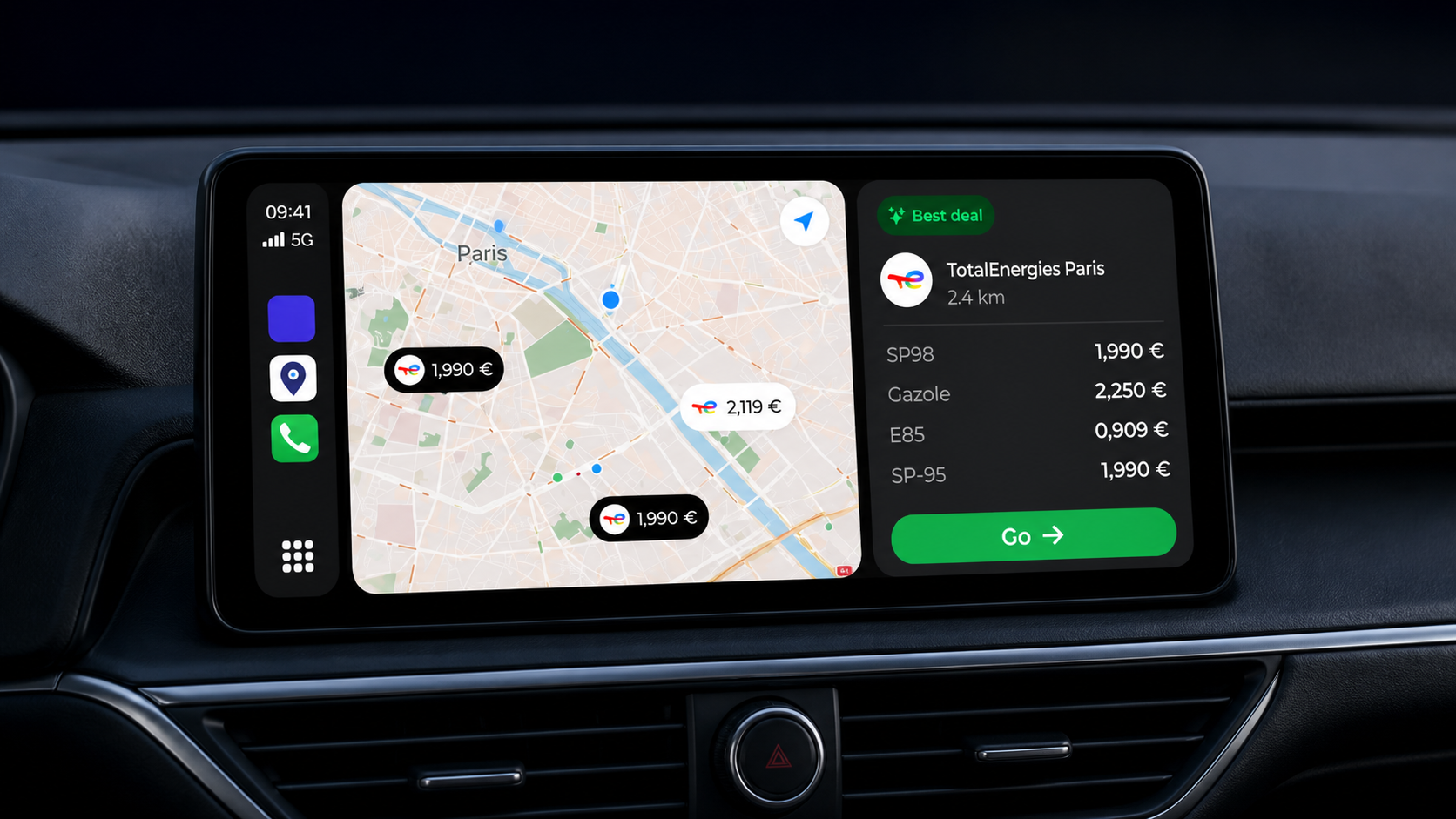
Fillzz’s in-car experience lets you explore nearby stations and their details. A station page shows available fuel prices and, where provided, the address, brand, distance and travel time. These details put your next fuel stop in context.
From station selection to guidance
From a station’s details, prepare navigation to that destination. Favourites and recent destinations also help you find a familiar stop. Android Auto adapts these actions to the car display; prepare your account settings on your phone.
Android phone or iPhone: which platform?
Android Auto works with Android phones; CarPlay is for iPhone. Both in-car experiences are included in Fillzz Premium, but your vehicle must support the platform you choose. This page uses the existing CarPlay illustration; Android Auto’s presentation may differ.
If Fillzz is missing or cannot find stations
First check that Android Auto connects to the vehicle. If Fillzz opens but blocks access, check your Premium account. If the station list stays empty, check location access and the network. For support, include your phone and vehicle models, plus Android and Fillzz versions.
Android Auto is a trademark of Google LLC. Prepare your stop before driving. The in-car visual shows CarPlay with illustrative prices, rather than a screenshot of Android Auto.
Set up Android Auto — Google HelpON YOUR JOURNEYS
Prepare a stop in a less familiar area.
During a trip, you plan a fuel break near your next destination. While parked, browse stations in Fillzz on Android Auto, open the one you are considering and prepare the route. Look at access and distance alongside the price: the closest station on the map is not always the easiest to reach.
Plan a fuel stopFrequently asked questions
Using Fillzz with Android Auto.
Does Android Auto require Fillzz Premium?
Yes. Using Fillzz in Android Auto is included in Fillzz Premium. Sign in to the account with this access in the Android app before opening it on your vehicle’s display.
PricingDo I need a second Fillzz app?
No. Use Fillzz on your Android phone, then open it from Android Auto once connected to your vehicle. Account and subscription settings are handled on your phone.
Do all Android phones support wireless use?
No. Wireless connection requires both a phone and car equipment that support this mode. Check the official Android Auto requirements for your phone and the connection modes supported by your vehicle.
Why is a price missing on the car display?
Fillzz refreshes data every 10 minutes, but availability and freshness depend on data providers. A listed station may therefore lack a price for a particular fuel. Missing data does not establish that Android Auto has a fault.
Our dataFILLZZ · iOS & ANDROID
Your next fill-up starts here.
Compare, choose, hit the road. Find Fillzz on iOS and Android.